How to Use a Conditional Logic WordPress Form Builder
Tired of long, generic forms that scare visitors away? Conditional logic changes that. It shows only relevant fields based on answers. This creates personalized journeys that boost completions and lead quality.
With a conditional logic WordPress form builder, you can easily build smart, branching WordPress forms. And you don’t have to write a single piece of code. Jump steps, show/hide questions, or create multiple endings to collect more responses.
Here’s how to drive a better user experience and boost your lead generation efforts with smarter forms.
What is a conditional logic WordPress form builder?
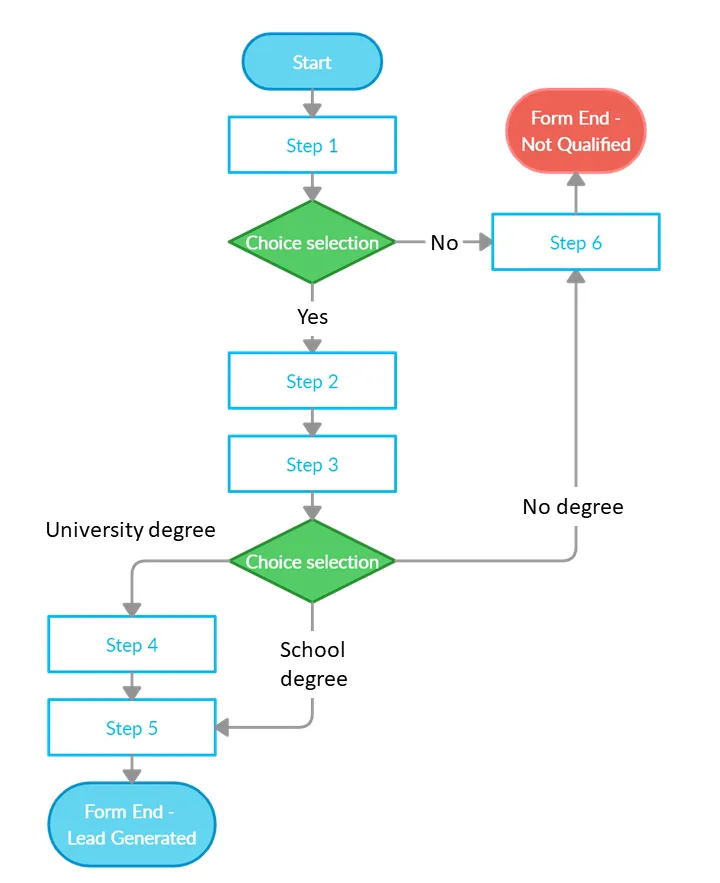
A conditional logic WordPress form builder is a powerful tool that creates dynamic website forms. Unlike regular forms, these lead capture forms don’t show every field to every visitor. Instead, they intelligently reveal only the questions that apply, based on previous answers. This makes forms feel shorter, more relevant, and far less intimidating.
As a result, you improve completion rates and lead quality.
How a conditional logic WordPress form builder works
You define rules using conditional operators such as equals, not equals, contains, greater than, or is checked.
When a visitor provides an answer that matches your rule, the system instantly applies conditional display. It shows, hides, or enables specific fields in real time. The form stays clean and focused throughout the process.
Only when the visitor submits the form does the tool collect and send all visible, completed data to your CRM, email, or database.
Building your first segmented form
Here’s the practical flow to create your first smart, segmented form. Let’s walk through each step:
Choosing the right starting question
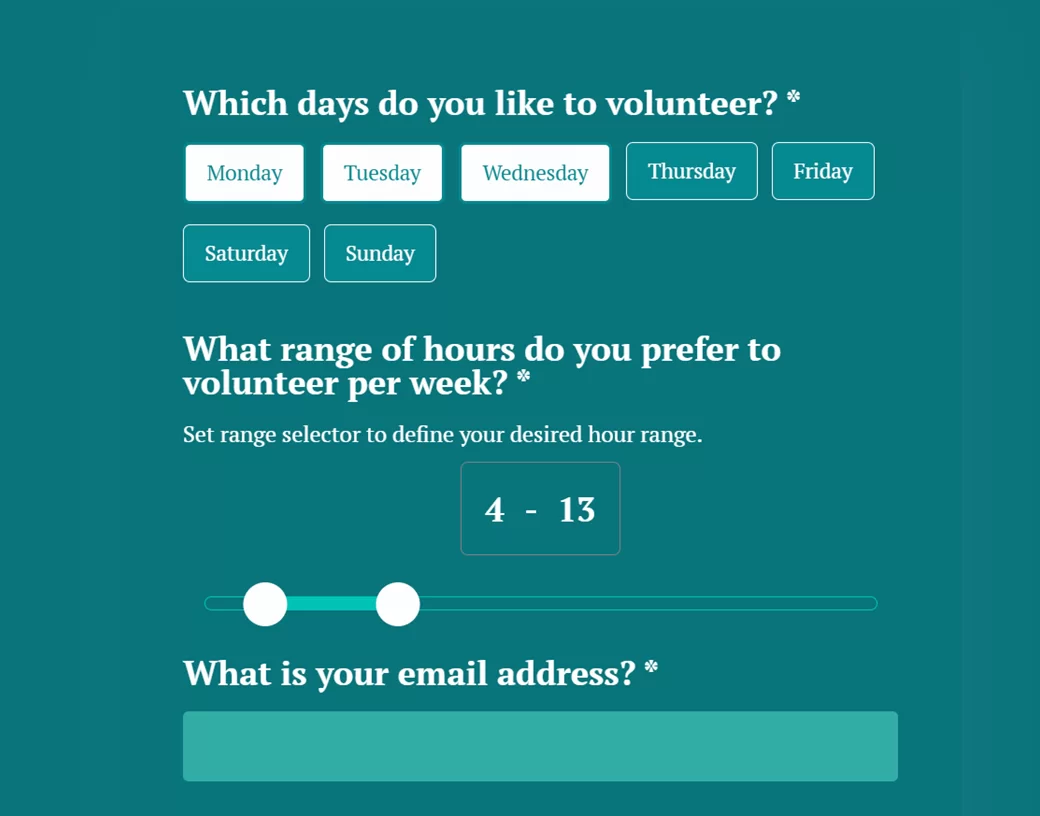
The opening question is the foundation of effective lead segmentation. Choose one that gathers useful user input while naturally dividing people into meaningful groups.
For example, “What is your main goal?” or “Which service interests you most?”
A well-chosen first question turns broad user responses into precise segments right away. This ensures the rest of the form feels personalized and relevant from the second step onward.
Creating branching paths
Each answer can trigger automation actions that direct visitors down tailored paths. Use workflow automation to adjust questions, skip sections, or change button text dynamically.
At the end, apply post-submit logic to create different outcomes:
- Redirect to a custom thank-you page
- Send a personalized follow-up email
- Add specific tags in your CRM
- Trigger different Zapier actions depending on the path taken
Showing and hiding fields intentionally
Every form field should serve a clear purpose. Use conditional visibility strategically. This ensures you reveal fields only when they add real value to that specific visitor’s journey.
Avoid hiding elements arbitrarily. Intentional show/hide logic creates a smoother, more trustworthy experience. It also prevents users from feeling like the form is broken or manipulative.
Using scoring or lead qualification logic
Assign points to answers with conditional logic rules. Hot leads get higher scores based on budget, urgency, or intent.
Use the total to qualify prospects automatically and route high-value form entries to your sales team.
Setting up multi-step progress
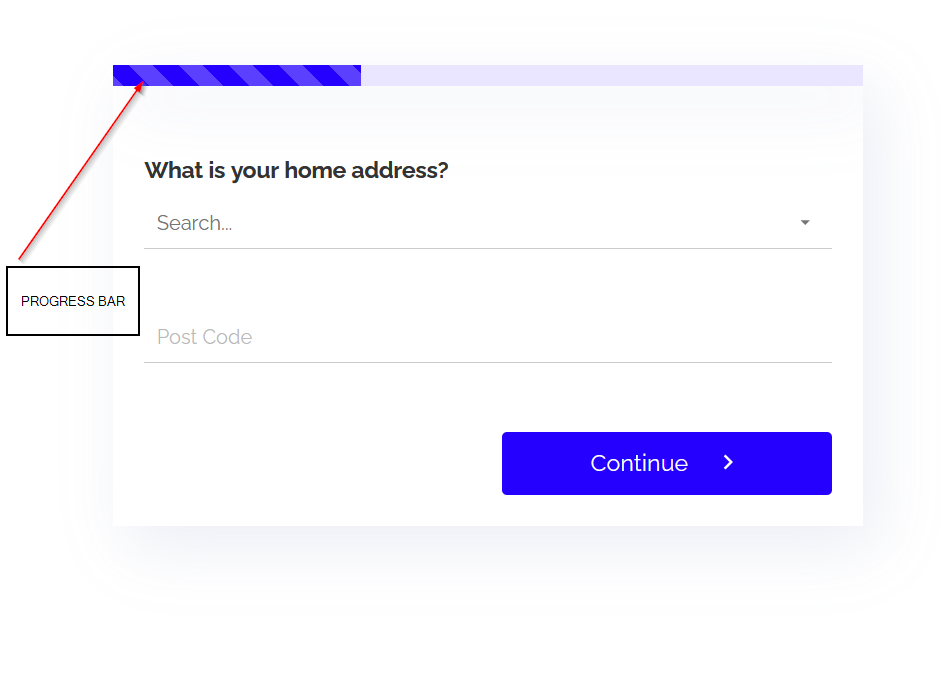
Show a clean progress bar or step indicators so users see how far they’ve come. This reduces abandonment and makes longer forms feel more manageable.
Optimizing for mobile
Over 60% of web traffic comes from mobile devices. So, don’t build forms that break on small screens.
Follow these steps to make your forms mobile-friendly:
- Preview your form on phones and tablets in the builder.
- Shorten steps to 3–5 max per page.
- Ensure text is large and readable without zooming
Mobile users quickly abandon if things load slowly or feel clunky. Optimize images, reduce fields, and test loading speed. A seamless mobile experience can significantly boost completions, helping you turn phone visits into solid leads.
Connecting the form to CRM/email/Zapier
Send submissions directly to your CRM, add contacts to an email list, or trigger workflows in Zapier. Map fields once and let qualified leads flow automatically.
Previewing and testing all paths
Use the preview mode to walk every branch. Submit test data and check confirmation messages. Verify that logic, redirects, and integrations work perfectly before going live.
Common mistakes to avoid
Even smart forms can fail if you overcomplicate them. Here are the biggest pitfalls that kill conversions and how to dodge them.
Over-segmentation
Adding too many branches (think 8+ paths) sounds smart on paper. But it confuses visitors, makes the form feel unpredictable, and can dramatically drop your conversion rate.
Fix: Stick to 3–5 clear, meaningful segments that align with your real audience needs and business goals. Fewer, stronger paths almost always outperform complex mazes.
Asking too much too early
Jumping straight into sensitive questions (e.g., budget, timeline, personal details) kills momentum. This causes people to abandon your form. Visitors feel like you’re interrogating them instead of helping them.
Fix: Build a true conversational form. Start with easy, low-friction questions to build trust. Save the deeper, higher-commitment fields for later steps once they’re already engaged.
Breaking the user experience
Here are a few things that make users frustrated and suspicious:
- Inconsistent rules
- Fields that disappear without explanation
- Broken progress indicators
- Paths that loop illogically make users frustrated and suspicious.
If people come across these issues, they’ll likely abandon the form. And you lose clean data.
Fix: Test every single branch thoroughly on desktop and mobile. Ensure logic feels natural, progress is always visible, and nothing jumps unexpectedly. A seamless experience protects data accuracy and keeps visitors moving forward confidently.
Conclusion
You now have the tools to build smarter WordPress forms. Start simple. Test every path. Let logic do the work. Done right, these forms stop asking and start closing.
Get LeadGenApp today and start creating conditional logic forms that convert. No code required.
Try it out and see how easy it is to turn forms into high-converting lead machines.
About the Author